
Convert PNG to ICNS for macOS Apps (Xcode-ready icons)
3/8/20262 min readBy RM
macosicnspngxcodeapp-packagingiconsassets
If you build macOS apps, you eventually hit the “I only have a PNG, but I need an .icns” problem. The shortcut is to generate a multi-size ICNS file in one go, instead of hand-resizing files and hoping you didn’t miss a size.
Use the PNG to ICNS Converter and you’re done in a minute.
Quick steps (the short version)
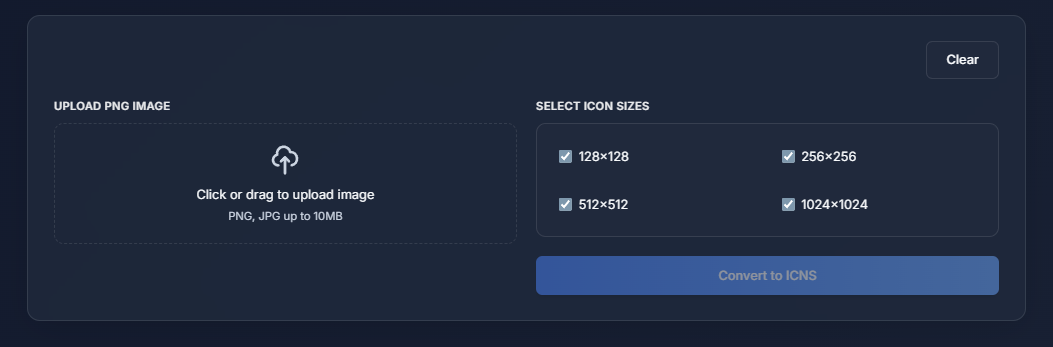
- Drop your PNG into the tool.
- Include 128, 256, 512, and 1024 sizes (that covers most cases).
- Download the .icns and add it to your Xcode asset catalog or packaging step.
PNG → ICNS tool UI
Example that matches real usage
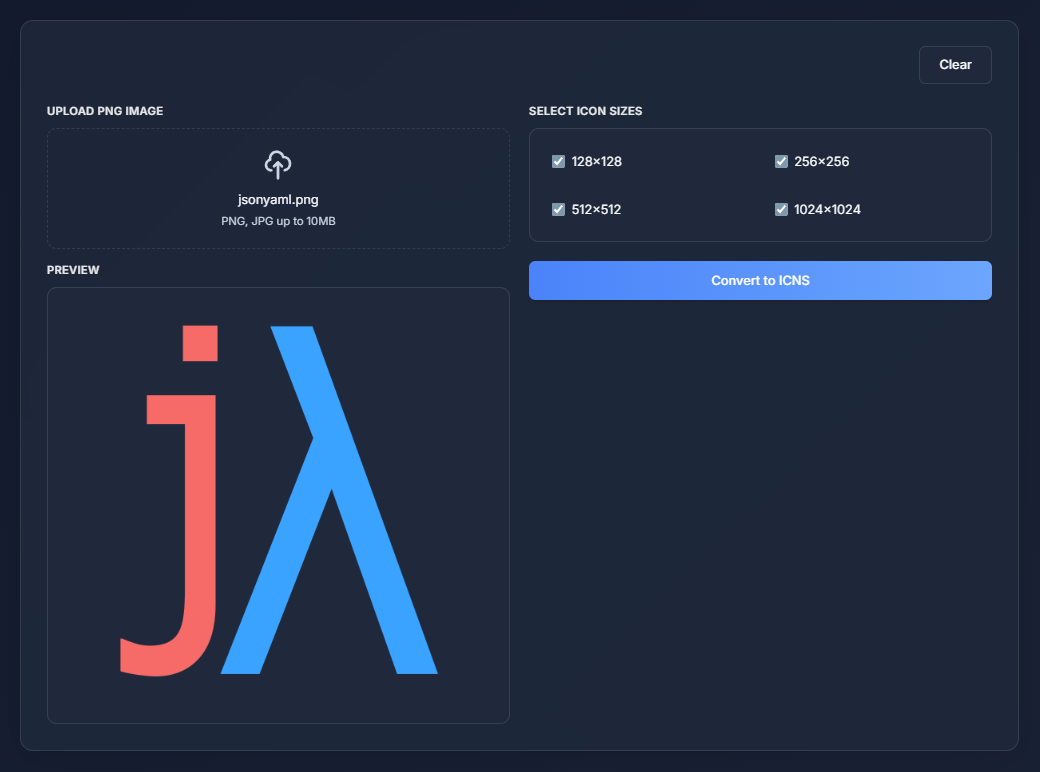
Let’s say you have a 1024×1024 transparent PNG logo. The tool outputs a single .icns file containing:
- 128×128
- 256×256
- 512×512
- 1024×1024
That single file is what Xcode expects when you set the app icon in Assets.xcassets.
ICNS sizes preview
Common mistakes (and how to avoid them)
- Starting with a small PNG. If your source is 256×256, the 1024 size will look soft. Use the largest source image you can.
- Forgetting transparency. If the PNG has a white background, that’s what ends up in the final icon.
- Missing sizes. macOS still expects several sizes for crisp rendering at different scales.
Verification checklist
Before shipping:
- Preview the .icns locally and confirm each size exists.
- Check transparency on both light and dark backgrounds.
- Make sure the icon looks right in Xcode’s preview.
When to use something else
- Need a Windows app icon? Use PNG to ICO.
- Only need a single size? Keep the PNG and skip ICNS.